Setting Up A Mercurial Repository In Ubuntu 11.10

I have been running Mercurial for a couple of years on a hacked DLINK DSM-G600 network storage device. For a small budget and low power solution, the funplug hacks available for the DSM-G600 work very nicely. I have outgrown this configuration and needed more space, backup options and faster data transfers than what is provided by the DSM-G600. To accomplish this, I setup Ubuntu 11.10 (Oneric Ocelot) in an old PC and installed a pair of 2TB Seagate hard drive in RAID1 mode (mirrored) to increase the reliability of the repository. This post documents step by step the configuration of Mercurial in Ubuntu 11.10.

Requirements

Before getting intimate with apt-get, let’s discuss the requirement for the installation of  Mercurial.

  1. A 2TB mirrored drive will be used to host the Mercurial repositories. The path to the drive is /media/disk1.
  2. The Mercurial server needs a static IP address in order to have a consistent location for clients to use.
  3. An entry will be created in the client host file to access the Mercurial server by name rather than IP address. If you have your own DNS server, this step is not required. For my installation the name of the server will be alexandria, as in the library.
  4. All remote access to the Mercurial server will be done using the http protocol. An installation of Apache is required.
  5. All remote access to Mercurial will require a user id and password. Since this is a personal installation, only one user will access Mercurial.

Overview

To put the installation in perspective, its best to agree on what is it we are going to accomplish. Figure 1, illustrates how the different components related to Apache, security and Mercurial interact with each other.
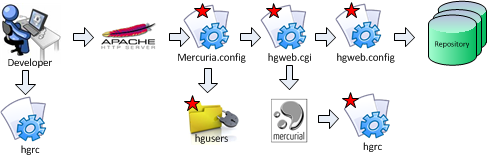
Figure 1

All the configuration files with a red star will be modified during the installation and configuration of Mercurial. Table 1, contains a description of the different configuration files involved in the installation.

FileDescription
mercurial.configApache configuration file with information about the CGI script responsible for handling requests against the Mercurial repository URL.
hgusersPassword file with the encrypted user id and password of the users who are allowed to access Mercurial through the web.
hgweb.cgiCGI script responsible for passing the web request to Mercurial
hgweb.configConfiguration file that points to the location where the repositories are stored.
hgrcMaster Mercurial configuration file with global settings for the product.

A developer using the command line hg tool or TortoiseHg sends request to a well defined repository URL in Apache. Apache knows how to handle the request by virtue of a mercurial config file which reference the hguser password file to handle security and invokes the hgweb.cgi to handle the actual request. The hgweb.cgi file knows which Mercurial routines to invoke and how to get to the repositories via the hgweb.config file. Mercurial reads global settings from the hgrc config file. This is a simplistic view, but should give you a general idea how the entire configuration is put together.

Installation

This tutorial assumes you can understand simple bash commands, have physical or remote access to the Ubuntu server and have configured the space where the Mercurial repository is going to be installed. Let’s get started.

Step 1 – Assign a static IP address to the server

Follow this instructions to assign a static IP address to your server. This will make the interaction between the server and the client consistent every time.

Step 2 – Add entry to client host file

Follow this instructions to add an entry to your host file in Windows 7. This will allow you to browse or use the hg command line tool without having to remember the ip address of the server. After performing this step you can open a command window and ping the server by name. In my case ping alexandria shows the Ubuntu server is online. See Figure 2.
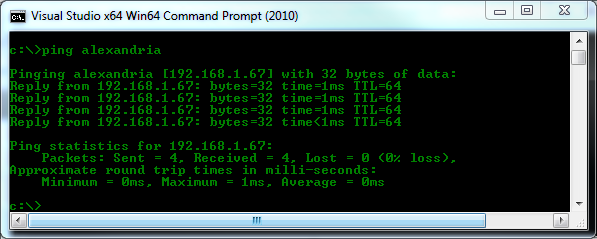
Figure 2 - Pinging Mercurial Server

Step 3 – Update UBUNTU Software and check version

Connect to the Ubuntu server and open a shell to verify the software in your server is up to date. While you are at it, verify the version of Ubuntu you are running. I performed my installation from a Windows 7 PC using Putty to connect over ssh to the Ubuntu server.

sudo apt-get update #Update software packages
lsb_release -a #Verify Ubuntu version

Step 4 – install apache

Install Apache if you already haven’t. You can check if Apache is already installed by pointing a web browser to the Ubuntu server and see if the “It Works!” message is displayed. If not, install Apache with the command below. Alternatively you can test directly from the shell by doing a wget localhost. You will see the 200 OK response code.

sudo apt-get install apache2 #Install Apache server
wget localhost #optional verification Apache is running

Step 5 – install mercurial

Next step is to install Mercurial.

sudo apt-get install mercurial  #Install mercurial

Step 6 – configure master hgrc configuration file

Now that Mercurial is installed, let’s configure the master hgrc configuration file. The goal is to enable the following functionality.

  • Remove Mercurial SSL restrictions
  • Allow to push repository from the web
  • Allow repositories to be downloaded in multiple compressed formats
  • Trust the user www-data. This is the the account used to run Apache. Not having www-data as a trusted user in the hgrc config file generates a nasty error while updating a repository.
sudo nano /etc/mercurial/hgrc
#type the following in the hgrc file
[web]
allow_push = *
push_ssl = false
allow_archive = gz, zip, bz2
[trusted]
users = www-data

Step 7 – Configure personal hgrc FILE in server

Configure your personal .hgrc file in the Ubuntu server with your user name. This file gives you the opportunity to personalize the Mercurial experience.

cd ~  # go to home directory
nano .hgrc
#type the following
[ui]
username = Your Name

Save the file and proceed to the next step.

Step 8 – create sample repository

Let’s create a sample repository right at the root of your home drive. We’ll use this repository later to test access to Mercurial through the web server.

cd ~  # go to home directory
mkdir repository1
cd repository1
hg init
echo Hello World! > readme.txt
hg add readme.txt
hg status
hg commit -m 'My first repository!'
hg tip  # shows the tip of the repository

We have just finished creating a repository with one readme.txt file in it.

Step 9 – Configure mercurial base directory

Next step is to configure the directory from where Mercurial is going to serve repositories via Apache. As stated before, the location for the installation of the the repository is /media/disk1/mercurial, if you are not using a dedicated drive chances are the location of your repositories is /var/hg.

cd /media/disk1/
sudo mkdir mercurial
sudo mkdir mercurial/repositories
#Change the owner of the repository to the Apache user
sudo chown -R root:www-data mercurial

Step 10 – Configure mercurial web configuration file

Let’s configure the hgweb.config. For now we only need two entries in the file. One to control display style and the other to indicate where is the repository. Open a new hgweb.config file with nano or vim, enter the text below and the save the file.

cd /media/disk1/mercurial
sudo nano hgweb.config

Enter the text below and save the file.

[web]
style = gitweb

[collections]
/media/disk1/mercurial/repositories = /media/disk1/mercurial/repositories

Step 11 – Configure mercurial cgi sCRIPT

Let’s configure the hgweb.cgi script in order to serve the repositories via Apache. Instead of writing an entire file ourselves, we’ll use the one provided by Mercurial and make the necessary modifications.

cd /media/disk1/mercurial
sudo cp /usr/share/doc/mercurial/examples/hgweb.cgi . # do not forget the dot at the end
sudo chmod a+x hgweb.cgi

Open hgweb.cgi with nano or vim and find the line that reads config=….. and replace with the following.

config = "/media/disk1/mercurial/hgweb.config"

Step 12 – register mercurial cgi with apache

Next let’s configure Apache so it runs the hgweb.cgi when the /mercurial virtual directory is requested. Instead of modifying the default configuration file, let’s create a separate configuration file and link it to the default Apache configuration file.

cd /etc/apache2
sudo mkdir mercurial
cd mercurial
sudo nano mercurial.conf

Type the following in the mercurial.conf file. Note I have intentionally left security out of the file in order to test the installation without security first.

ScriptAliasMatch ^/mercurial(.*) /media/disk1/mercurial/hgweb.cgi$1
<Directory "/media/disk1/mercurial/">
Options Indexes FollowSymlinks MultiViews ExecCGI
AllowOverride All
Order allow,deny
Allow from all
AuthType Basic
AuthName "Mercurial Repositories"
AuthUserFile /media/disk1/mercurial/hgusers
Require valid-user
</Directory>

The next set of commands link the mercurial.conf file to Apache. This let the web server knows how to handle requests to /mercurial.

cd /etc/apache2/sites-available
sudo nano default
# Type on the line before
Include /etc/apache2/mercurial/mercurial.conf

#restart the apache server so the changes take effect
sudo apache2ctl restart

Step 13 – Test web access to repository

Let’s copy the test repository we created to /media/disk1/mercurial/repositories in order to serve it through the web. Note you need to change the owner of the directory structure in order for Apache to serve the directory properly.

cd ~ # go to your home drive
sudo mv repository1 /media/disk1/mercurial/repositories/.
sudo chown -R root:www-data /media/disk1/mercurial

Launch your browser pointing to http://servername/mercurial. You should see one repository with the options to download in multiple compressed formats. See Figure 3 for reference.
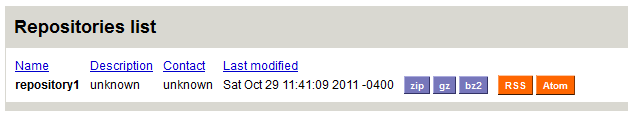
Figure 3 - Browsing Repository

Before running the next steps to test cloning the repository, let’s do a a bit of cosmetic housekeeping on repository1. Let’s populate the description and contact.

cd /media/disk1/mercurial/repositories/repository1
cd .hg
sudo nano hgrc
#type the following
[web]
contact = Omar Francisco
description = Hello World Project!

Refresh your browser and how you should see the contact and the description populated. Nice!

Figure 4 - Merurial Repository With Cosmetic Changes

Step 14 – Clone Repository From Client PC

Let’s test cloning and then updating the repository. From the windows client computer open and command window and perform the following steps.

cd %USERPROFILE%/documents     # go to the documents folders
hg clone http://alexandria/mercurial/repository1    #clone repository1
cd repository1   # go to the repository
dir c:\ > readme.txt  # update readme file
hg status # see the file readme.txt has been modified
hg commit -m "Remote Changes To Readme File"
hg push http://alexandria/mercurial/repository1

Browse to the repository and click on the repository1 link. You should see information similar to that of figure 5.
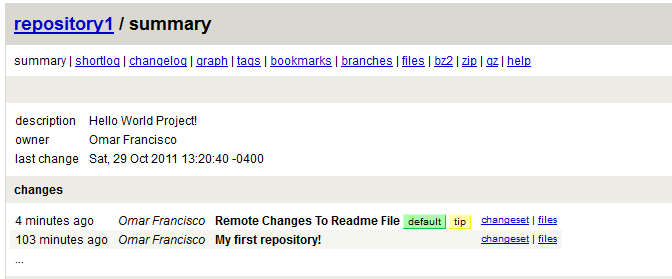
Figure 5 - Remote Update

We have reached a milestone in the installation of Mercurial. If you are not interested in security, then this is it. We are done. If on the other hand you want to secure access to your repositories, then continue reading.

Step 15 – Configuring security

In order to configure security, we need to instruct Apache to only allow access to users who are registered in a password file.

cd /media/disk1/mercurial
# create password file - need to type user password twice
sudo htpasswd -mc hgusers hgadmin
sudo chown root:www-dta hgusers
# type the password twice - repeat command for more users

Edit the mercurial.conf file in /etc/apache2/mercurial to read as follows

ScriptAliasMatch ^/mercurial(.*) /media/disk1/mercurial/hgweb.cgi$1
<Directory "/media/disk1/mercurial/">
Options Indexes FollowSymlinks MultiViews ExecCGI
AllowOverride All
Order allow,deny
Allow from all
AuthType Basic
AuthName "Mercurial Repositories"
AuthUserFile /media/disk1/mercurial/hgusers
Require valid-user
</Directory>

This changes configure Apache to allow users registered in the /media/disk1/mercurial/hgusers file to browse the repository. Be extremely careful typing the modifications to the mercurial.config file. Apache is very unforgiving of typographical mistakes. In the event you get errors while trying to login through the web check the /var/log/apache/error.log for the cause. For your reference,  figure 6 contains a listing of the /mercurial directory after the installation is completed.
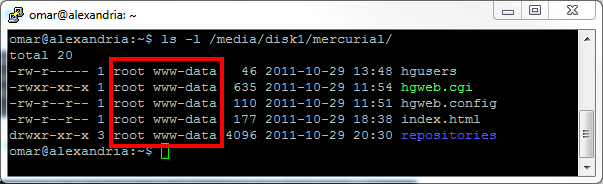
Figure 6 - Mercurial Directory Listing

Performing a hg clone http://alexandria/mercurial/repository1 now requires the user to provide an ID and password in order to have access to the repository.  We are done, go and write some code to test drive your Mercurial installation.

PCB Inspection Using The Veho Discovery Digital Microscope

Creating your own PCB seems to be an unavoidable task for every electronic enthusiast.  Even when you plan to use a professional service to create the final PCB for your project, developing the skills to create your own PCB for prototypes and small projects will save you money and give you quick gratification.  To assist with the PCB creation process I wanted a relative inexpensive digital microscope to inspect PCBs and solder joints.  I had a $100 dollar budget.  Over a  couple of nights I researched available microscopes within my budget.  I must say I was most impressed with the Dino-Lite family of products, unfortunately the cost of these units was outside of my budget.  At the end of my research I settled for the Veho VMS-0004 Discovery.  This post documents my first impressions of the Veho VMS-0004 microscope in the context of PCB design.

Installation

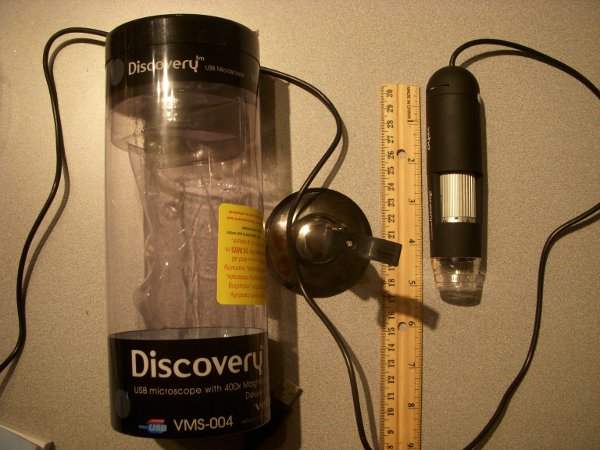
I picked a Veho Discovery from J&R in New York City for $69.99 + taxes.  The unit comes in a slick cylindrical package.  It comes with drivers for the MAC and PC.  Unfortunately the CD is a small format and did not fit in my iMac.  I had to use my laptop to transfer the content of the CD to a USB thumb drive in order to proceed with the installation.   I installed the software in the Windows 7 64 bit partition of my iMac without any problems.   Figure 1 contains a picture of the Veho and its base.
Veho Microscope

Figure 1 - Veho Microscope

Test Run

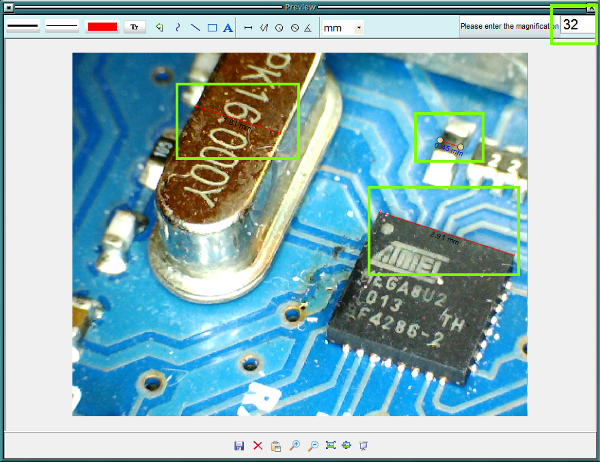
The Veho software let’s you take pictures and videos at high resolution.  It also lets you measure objects as long as you provide the magnification from the microscope.  I had mixed results with this feature.  Figure 2 contains a picture of the MEGA82U micro controller and crystal in an Arduino Uno board at a 32x magnification.  I have boxed in green the different measurements I took on the Arduino Uno.  You will need to play with the magnification factor in order to get decent measurements.

Veho - Arduino Uno Snapshot

Picture 2 - Veho - Arduino Uno Snapshot

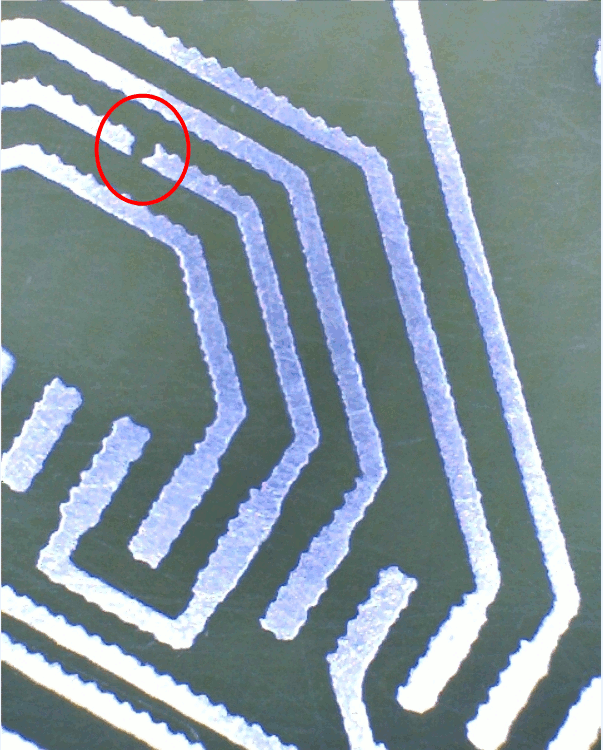
Figure 3 contains a picture of a broken trace in a PCB.  The magnification of this picture is 30x.  The broken trace is very difficult to see with the naked eye.

Veho - Broken PCB Trace

Figure 3 - Veho - Broken PCB Trace

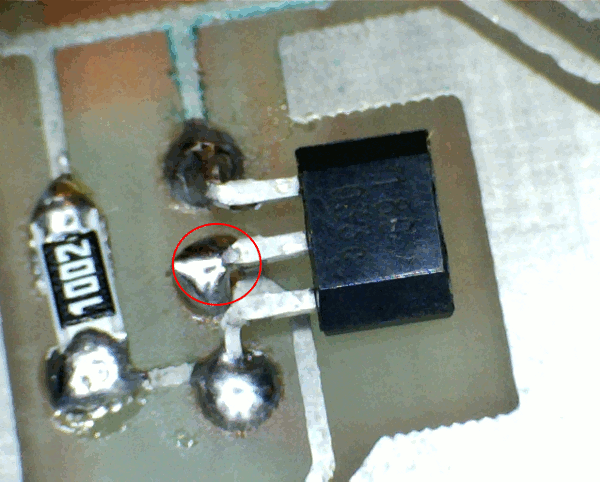
Figure 4 shows a hall effect sensor and a SMD resistor.  The area in red shows a solder joint that needs additional work.  The magnification for this picture is 30X.

Veho - Hall Effect Sensor

Figure 4 - Veho - Hall Effect Sensor

Figure 5 shows a portion of a trace magnified at 400x.  You can see imperfections impossible to see with the naked eye.

Veho - Trace 400X

Figure 5 - Veho - Trace 400X

The following video contains a few shot of a different PCBs.  Hopefully you can see the level of magnification you can achieve with the Veho.

Conclusion

The Veho is made of hard plastic. The base is very light and tips over if the microscope is pushed too much forward.  I am considering making a more robust base using PVC.  The image quality is very good and the unit does a good job providing light to the area under inspection.    For $69.99 + taxes, the Veho Discovery is a nice addition to your electronic workbench.

Posted in PCB

I2C Bus Scanner

Attaching components to an I2C bus can be a tedious experience when things do not go right.  Many factors ranging from bus termination, cross over cables and faulty devices can drive you to drink while debugging a problem.  I have been using a PDE created by Tod E. Kurt to perform bus scanning when troubleshooting connectivity to I2C components.  This post discusses modification made to the code provide by Tod and its conversion to an Arduino library.  The I2CScanner class is meant to be used as a debugging tool.  It assumes the bus is operational.  This class has little value if you are trying to bit bang an implementation of the I2C protocol.  The class satisfies two primary use cases.  Scanning the I2C bus and displaying the status of each address and determining if a device is listening to a particular address.

Installation

The following steps describe how to download and install the library.

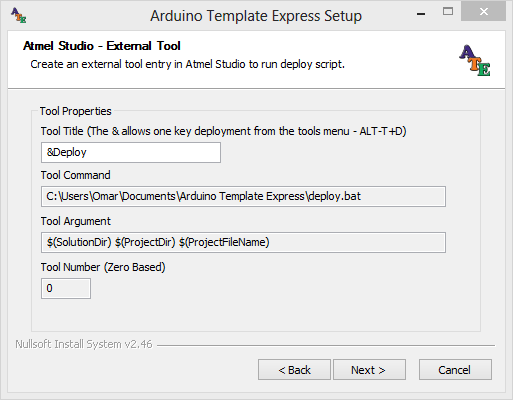
  1. Download the file i2cscanner.zip and unzip to a temporary directory.  It contains the files i2cscanner.h, i2cscanner.cpp and i2cBusScannerDemo.pde.
  2. Create a directory named i2cscanner in the library directory of your Arduino installation.
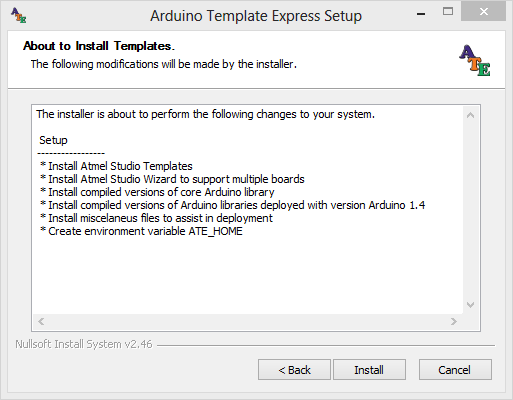
  3. Copy the files i2cscanner.h and i2cscanner.cpp to the newly created i2cscanner directory.
  4. Load the pde and run

Using The Library

Listing 1 contains the code of a demo PDE that tests the different methods of the class.  The method I2CScanBus::isAddressOnBus(byte address) has been very helpful while creating unit tests to test code that interface with I2C components.  The other method of the class, scanBus(..) and its overloads, allow finer control of the range of addresses to include and how to display the report generated when the I2C bus is scanned.

#include <Wire.h>
#include <i2cscanner.h>
using Utilities::I2CScanBus;
void setup()
{
/* Initialize libraries */
Wire.begin();
Serial.begin(19200);

/* Scan I2C bus from address 1 - 127 */
I2CScanBus::scanBus();

/* Check if there is a device at address 103 */
Serial.print("\nSearching for address 103...");
if ( I2CScanBus::isAddressOnBus(103) )
Serial.println("Device Found");
else
Serial.println("Device NOT Found");

/* Scan I2C bus from address 10-20 */
I2CScanBus::scanBus(10,20);

/* Scan I2C bus from address 1 - 127, display addresses in HEX using two columns */
I2CScanBus::scanBus(1,127, I2CScanBus::NUM_HEX, I2CScanBus::TWO_COLUMN);
}

void loop()
{

}

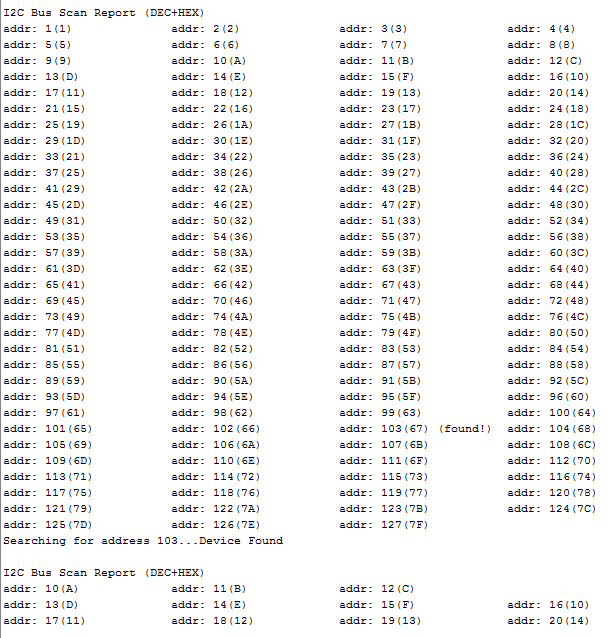
Figure 1, shows the partial output of the report generated by running the code in the sample pde.  Addresses are displayed in decimal and hex.  Option to display the address in binary or octal is available as well.

Scan Bus Report

Figure 1 - Scan Bus Report

Once you have the sample sketch setup you can run it any time you need to scan the bus.  Alternatively you can reference the library and scan the bus from within your  project as needed.

 I2CScanner Source Code

WordPress TwentyEleven Theme – Show Only Sticky Posts In Home Page

Introduction

As part of the customization of my site, I want to display only sticky posts on the home page.  On the average I expect to have one sticky post at the time.  This post documents how to modify the TwentyEleven Theme in WordPress 3.2 to achieve this functionality.

Implementation

Visit ThemeFm for a good overview of the TwentyEleven theme. This is really a one liner.  Open the index.php template, and insert the <?php if(!is_sticky() && (is_home() || is_front_page()) ) break;  ?> line just before the get_template_part(…) call.

<?php /* Start the Loop */ ?>
<?php while ( have_posts() ) : the_post(); ?>
<?php if(!is_sticky() &amp;amp;amp;amp;amp;amp;&amp;amp;amp;amp;amp;amp; (is_home() || is_front_page()) ) break;  ?>
<?php get_template_part( 'content', get_post_format() ); ?>

This line of code check if the post is not sticky and the home or front page is being display.  If this condition is met it aborts the loop.  This works because WordPress displays all sticky posts first.  That’s it we are done.

WordPress TwentyEleven Theme – Taming Category And Archive

Introduction

I am a new to WordPress.  My site is running WordPress 3.2 with the TwentyEleven theme.  I wanted to change the way posts under archives and categories are displayed.  Instead of listing all the posts, I want to list the title of the post and a summary.  This post describes the simple changes that need to be done to the TwentyEleven theme to accomplish this change in functionality.

Implementation

Visit ThemeFm for a good overview of the TwentyEleven theme.  The content.php page, which is the page with the default template to display all post, has logic to display the summary of the post when it is displayed in a search.  That’s exactly what I want to do when displaying the list of posts in a category or in an archive.  Step 1, is to make a copy of the content.php template and to name it content-archive.php.
Step 2, requires minor modifications to the content-archive.php page.  Look for the following code in the content-archive.php.

?php if ( is_search() ) : // Only display Excerpts for Search ?>
<div>
<?php the_excerpt(); ?>
</div><!-- .entry-summary -->
<?php else : ?>
<div>
<?php the_content( __( 'Continue reading <span>&amp;amp;amp;amp;amp;amp;amp;amp;amp;amp;amp;amp;amp;amp;rarr;</span>', 'twentyeleven' ) ); ?>
<?php wp_link_pages( array( 'before' => '<div><span>' . __( 'Pages:', 'twentyeleven' ) . '</span>', 'after' => '</div>' ) ); ?>
</div><!-- .entry-content -->
<?php endif; ?>

Replace this block of code for the following code in order to force the the template to behave as in search mode.

<?php // display Excerpts for archive ?>
<div>
<?php the_excerpt(); ?>
</div><!-- .entry-summary -->

At this point we have a template that displays the title of the post with date information and the summary.  Step 3, requires linking the content-archive template to the archive and category display.  Open the Category Template (category.php) and replace the following code

get_template_part( 'content', get_post_format() );

with the following line in order to link the content-archive to the category display.

get_template_part( 'content', 'archive' );

Repeat the same step for the Archive Template (archive.php) and that’s it, you are done.  Settings->Reading allows you to control how many posts to list per page.

The I2C Bus Terminator – Hasta La Vista Baby!

Introduction

After breaking the leg of another resistor while setting up a I2C bus.  It was time to permanently fix this problem.  The Atmega328 has one single I2C bus.  I am testing with software to bit bang data on any two pins of the AtMega328.  See SoftI2CMaster for more information.   I am also testing with the PCA9546A to provide access to multiple I2C buses.  Yes, pinky we are taking over the world tonight! The problem is all the I2C buses need to be properly terminated and bending the legs of the same set of resistors will eventually break them.  As my father used to say, they do not make ‘em like they use to.

Requirements

I need a solution that allows me to wire an I2C bus quickly and without bending pins.  The solution must be breadboard friendly and not complicated to use.  It should have connection pins so jumper wires are not required.  It took no time to create a simple three pin, two resistor solution that plugs in nicely into my Cohiba Breadboard main data bus.  It can also be used to terminate additional I2C buses.

Implementation

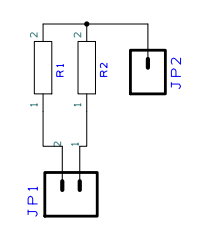
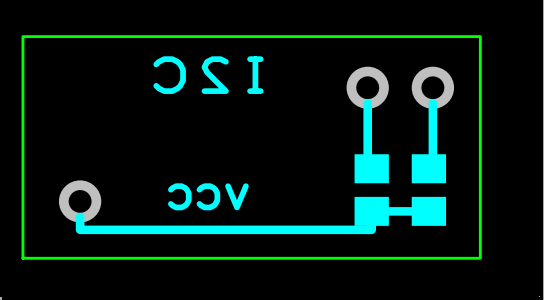
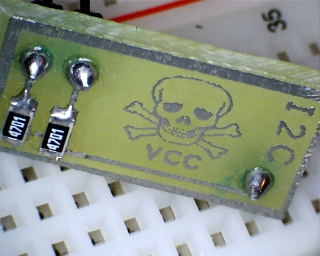
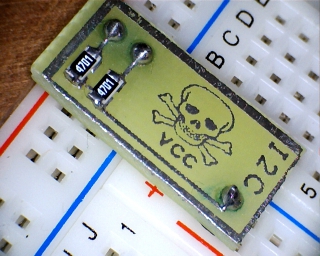
I plan to create about 6 units to keep them around to breadboard prototypes.  The pullup resistors are 4.7K.  This schematic cannot be any simpler.  The following pictures list the schematic, PCB layout, 3D design and the first model.

I2C Bus Termination

I2C Bus Termination

I2C Bus Termination PCB

I2C Bus Termination PCB

I2C Bus Termination 3D

I2C Bus Termination 3D

I2C Side View

I2C Side View

I2C Breadboard View

I2C Breadboard View

Conclusion

I welcome with opened arms any solution or tool that allows me to maximize the time I spend working on projects as opposed to building infrastructure to prototype or test it.  Having a couple of these I2C bus terminators around, is a small but nice addition to the toolbox.

Enhancing How Applications Capture Customer Address

Introduction

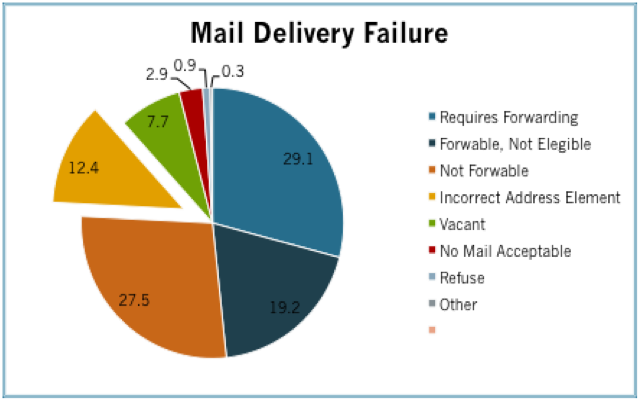
An accurate customer database is one of the most valuable assets a business can have. Incorrect customer addresses increase the cost of doing business and reduces profit margins. On May 17 of 2009, The United States Post Office published in the National Postal Forum Summit the annual cost of Undeliverable As Addressed (UAA) mail is estimated to be $1.856 billion. 12.4% of this amount is related to addresses with bad elements. Figure 1 contains a breakdown of the different reasons why mail is not delivered. The cost of fixing a customer address varies depending on the complexity and cost of a business process or the stage of the process at which the address discrepancy is found. This article analyses a couple of cost effective and easy to implement solutions to reduce the number of records with incorrect address due to bad address elements.

usps chart

Figure 1, Mail Delivery Failure

Quantify the Problem

For a company like Amazon, a shipment with a bad address represents additional cost and an exception in the business process. For a smaller company like the guys mowing my lawn, a bad address represents a delay in revenue since customers cannot be billed on time. Independently of the business line or application for which you want to introduce the techniques outlined in this article, it is important to understand the scope of the problem and quantify the cost to the business. This information will allow you to measure the effectiveness of the solution at different time periods after implementation. Financial matters aside, let’s discuss specifics.
Typical Address Capture

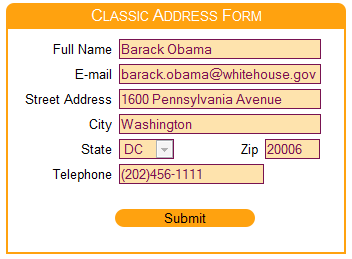
Figure 2 illustrates a HTML form capturing a customer address. Similar forms can be found in e-commerce web sites or in-house applications. The layout of the form is human friendly and does not give the application an opportunity to proactively fill in address information based on related data elements. The user is required to enter the entire address and at that point the address is ready for validation.
Classic Form

Figure 2 - Classic Address Form

Enhanced Address Capture – Round 1

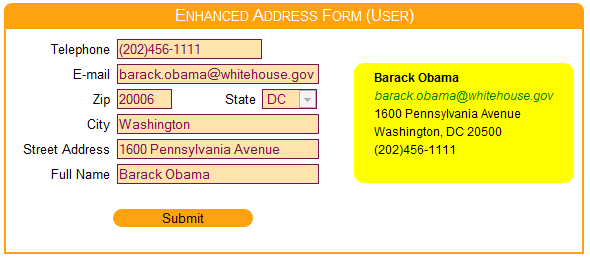
Figure 3 rearranges the form to allow the application to obtain related data elements as the operator enters information. This approach enhances the user experience and increases the accuracy of the address information. An additional visual element has been introduced to display the address in USPS format. This implementation uses the following data elements relationships.

  • A successful reverse telephone lookup can generate the customer address.
  • A zip code lookup can generate the city and state of the address. This will require the customer/operator to enter only the street address.
Enhanced Form

Figure 3 - Enhanced Form

Enhanced Address Capture – Round 2

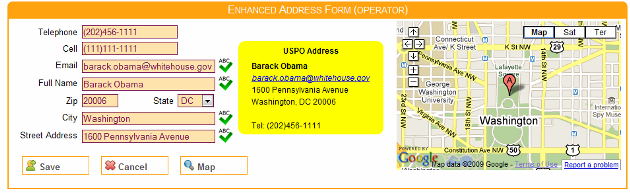
Figure 4 provides an implementation aimed to Customer Service Representatives (CSR). It provides a similar address resolution scheme to the previous solution. It also adds value by including an embedded Google map and enhanced spelling for targeted fields using NATO phonetic alphabet. This last feature is activated by placing the mouse over the field label and is a result of observing CSR work with different customers while creating new accounts or making modifications to existing ones. A CSR usually spells back to the customer email, city, address and name. In my experience, the number of fields that get spelled back to the customer depends on factors such as familiarity of the customer or CSR with the English language, speaker accent, quality of phone connection or complexity of the data. For instance, 30 Maine Street can be easily understood as 30 Main Street due to any of the conditions previously listed.

Another advantage of introducing a common spelling solution is the NATO phonetic alphabet can be replaced or modified to include words that mask the CSR accent. This facilitates the communication between customer and CSR and provides consistency to the task of spelling information back to the customer. 30 Main Street will be unambiguously spelled by all CSRs as three, zero, Mike, Alfa, India, November, Space, Sierra, Tango, Romeo, Echo, Echo, Tango.

Full Form

Figure 5 - Full Form

Using the Code

The code is broken in three main tiers. The presentation tier running on the browser and composed of address.html, tutorial.cs, tutorial.js and additional JQuery plugins for general UI support. The middle tier on the web server where the proxy for the reverse telephone lookup runs in the form of an Ajax WCF web service and the data layer where the data provider (whitepages, Google, etc.) stores telephone registration information. The HTML form is setup to run as a singleton in the tutorial.js file.

var theForm = new function MainForm() {
    var instance = null;
    var controller;
    this.getInstance = function() {
        if (instance == null) {
            instance = this;
            init();
        }
       return instance;
    }
    function init() {
        controller = new FormController
		(new InputAddressView(), new FriendlyAddressView());
        controller.init();
    }
}

$(document).ready(function() {
    theForm.getInstance();
});

The initialization of the form takes place during the document ready event generated by JQuery. Two composite views are created, one responsible for capturing user input and managing the map control, the other responsible for displaying the address in USPS format. The controller is responsible for sending/receiving data to/from the middle tier and handling events generated by the InputAddressView control. During initialization, the FriendlyAddressView registers with the controller to receive notification when address information changes. The InputAddressView does not need to register for notification since it is the only view capable of modifying the customer address. The controller initializes the views with default data, configures the reverse phone lookup proxy and notifies all subscribed views the main view has changed. All this displays a form with all fields blank ready for user input.

this.init = function() {
	_inputAddressView.init(THIS);
	_friendlyView.init(THIS);

	addressData = Data.Repository.getNewCustomer()
	setAddressView();
	proxy.setHandler(onTelephoneLookupHandler);
	fire(this);
}

The initialization of the InputAddress dynamically creates each input control (telephone, cellphone, zipcode, etc.) by providing the HTML placeholders where the labels and fields need to be generated. Each control is responsible for generating the input field it represents with the necessary label, masking, length, events, etc.

var _controller;
var zipCode = new CustomTextBox("zipCodeContainer",
	"zipCode3", "", "", "Zip", "", "99999", 5, onZipCodeKeyUp);
var state = new stateComboBox("stateContainer", "state3",
	"StateClass", "", "State", "ZipClass", onStateChange);
var cmbState1 = new stateComboBox("stateContainer1", "state1",
	"StateClass ReadOnly", "DC", "State", "ZipClass");
var cmbState2 = new stateComboBox("stateContainer2", "state2",
	"StateClass ReadOnly", "DC", "State", "ZipClass");
var street = new PhoneticTextBox("streetContainer", "streetAddress3",
	"TextBox", "", "Street Address", "", onStreetKeyUp);
var city = new PhoneticTextBox("cityContainer", "city3",
	"TextBox", "", "City", "", onCityKeyUp);
var fullName = new PhoneticTextBox("fullnameContainer",
	"fullName3", "TextBox", "", "Full Name", "", onFullNameKeyUp);
var email = new PhoneticTextBox("emailContainer", "email3",
	"TextBox", "", "Email", "", onEmailKeyUp);
var cellphone = new telephoneTextBox("cellphoneContainer",
	"cellphone3", "", "", "Cell", "", onCellphoneKeyUp);
var telephone = new telephoneTextBox("telephoneContainer",
	"telephone3", "", "", "Telephone", "", onTelephoneKeyUp);

The telephoneTextBox control is configured to notify the form when the phone field is complete. The form notifies the controller which in turn captures the new telephone number, notifies any view subscribed for notification and requests the reverse phone lookup proxy to perform a lookup.

this.onTelephoneChange = function(sender, data) {
	addressData.setTelephone(data);
	fire(sender);
	proxy.telephoneLookup(data);
}

A successful phone lookup is handled by the onTelephoneLookupHandler method of the controller which captures the new data, updates all views and schedules the map refresh to take place the next time a field loses focus. The map cannot be updated while the user is typing because the iframe where the map is located captures the focus during the map update. Not scheduling the map refresh has the side effect of the current field losing the focus and the data if the field has a mask. The reverse phone lookup takes place while the user is entering the cell phone or email for the customer. Note that the use case dealing with multiple persons registered to a single telephone number is not addressed in this example. The first person registered is used for the example provided.

function onTelephoneLookupHandler(data) {
	if (!data.d.found)
		return;
	addressData.setZipCode(data.d.zipCode);
	addressData.setState(data.d.state);
	addressData.setCity(data.d.city);
	addressData.setStreet(data.d.street);
	addressData.setFullName(data.d.name);
	_inputAddressView.setAddress(addressData, true);
	refreshMapOnChange = true;
	fire(this);
}

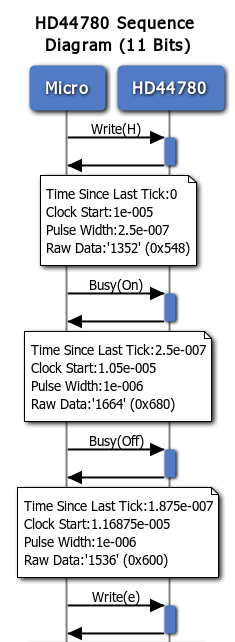
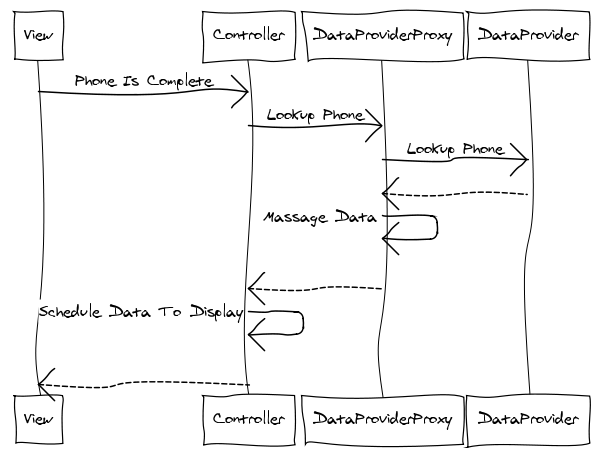
Figure 5 illustrates a sequence diagram of the reverse phone lookup. As a side note, the diagram was generated with the on-line sequence diagram generator provided by Web Sequence Diagram.

Sequence Diagram

Figure 5 - Sequence Diagram

The zip code resolution uses a similar approach, except instead of calling a web service hosted in the middle tier, one is called hosted at www.geonames.org. The call is triggered by the controller when the zip code has five digits. A successful lookup captures the city and state associated with the zip code and updates the views accordingly.

this.onZipCodeChange = function(sender, data) {
        var zipText = data.replace("_", "");
        addressData.setZipCode(data);
        if (zipText.length == 5)
            $.getJSON("http://www.geonames.org/postalCodeLookupJSON?&country=
		US&callback=?",
            	{ postalcode: zipText }, onLookupResponse);
        else {
            fire(sender);
        }
    }

function onLookupResponse(response) {
	if (response && response.postalcodes.length &&
		response.postalcodes[0].placeName) {
		addressData.setCity(response.postalcodes[0].placeName);
		addressData.setState(response.postalcodes[0].adminCode1);
		fire(this);
		setAddressView();
		_inputAddressView.focusOnStreet();
	}
}

The reverse telephone lookup is handled by the getAddress method of the web service. Multiple components implementing the IAddressRepository interface are provided to experiment performing reverse phone lookups against WhitePages, Google and AnyWho. Each connector submits the data to the site and parses the returned HTML file to get the address information. Note, the usage of public websites to screen scrape telephone information is not recommended for critical applications and may violate the terms of use of the targeted site. Consider the usage of this technique in the context of the provided code as a pedagogical instrument.

[OperationContract]
public Address getAddress(string telephone)
{
	PhoneRepository.IAddressRepository repository =
				new WhitePagesAddressRepository();
	IList<PhoneRepository.Address> list = new List<PhoneRepository.Address>();

	try
	{
		list = repository.getAddress(telephone);
	}
	catch( System.Exception ex )
	{
	}
	Address newAddress = new Address();
	if (list.Count > 0)
	{
		newAddress.city = list[0].city;
		newAddress.state = list[0].state;
		newAddress.zipCode = list[0].zipCode;
		newAddress.street = list[0].address;
		newAddress.name = list[0].firstName + " " + list[0].lastName;
		newAddress.telephone = list[0].phoneNumber;
		newAddress.found = true;
	}
	else
		newAddress.found = false;

	return newAddress;
}

Testing The Code

The project is configured to run inside the web server embedded in Visual Studio and launch the address.html page. Once the page comes up, perform the following tests.

  1. Enter a telephone number – some have been provided as example. While entering the cell information, the address associated with the phone number will be populated. The map is not refreshed until the focus is moved from the current field.
  2. Put the mouse on the label of fields with the spelling icon. The NATO phonetic spelling will be displayed if the field contains text.
  3. Press the spelling icon. This will display a dialog with the NATO phonetic spelling in both English and Spanish and allow modification of the field.
  4. Enter a valid zip code; both the state and city will be updated with the right values.

Conclusion

Reverse phone look up combined with resolution of city and state from a zip code can increase the accuracy of a customer address and reduce the time it takes a CSR to capture this information. Phonetic spelling can standardize the way information is spelled back to the customer and alleviate language related problems. These techniques combined reduce the number of bad addresses in your application database and the time CSRs spend with customers.

Download Source – 369.99 KB

I Want My Cohiba

Featured

Introduction

I am organizing my workspace at home in order to streamline how I work on electronic projects.  As a result of this, I needed a second breadboard and multimeter next to my main computer on the first floor. All the heavy equipment (power supply, bench multimeter, solder iron, etc) would be moved to the basement.  While enjoying one of my last two Cohibas, I started jotting down the requirements for this project.

Requirements

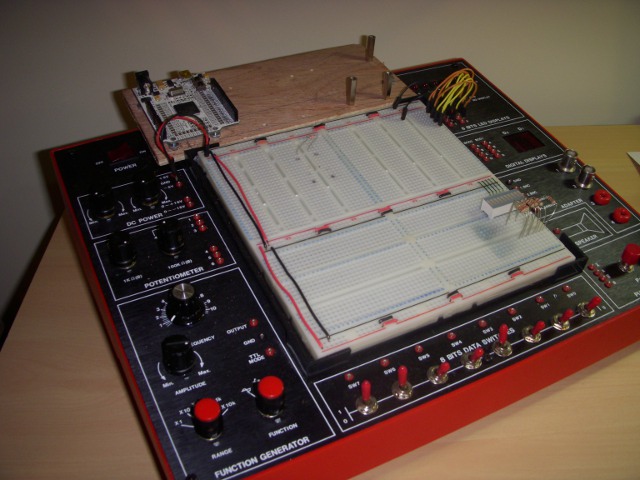
I tend to work on one project at the time.  I normally use the ETS-7000 Analog and Digital Trainer as my primary breadboard.  It’s been modified to hold two development boards with the Arduino form factor.  A Fez Panda and an Arduino Uno are part of my arsenal.  See Figure 1, Arduino Uno is missing from the picture.

ETS-7000 Analogue and Digital Trainer

Figure 1 - ETS-7000 Analogue and Digital Trainer

The ETS-7000 does the job, but there have been times when I want to breadboard a concept and the breadboard does not have enough real state or the Arduino Uno is connected to a bunch of wires.  This would be a good opportunity to ease some of these pains and create a platform on top of which I can build up in the future.  The new breadboard system should have the following features.

  1. Large real state to be able to work on complex projects or have multiple  prototypes on the board.
  2. Keep Arduino board fixed to prevent sliding or causing a short circuit.
  3. Portable in order to move between first floor and basement.
  4. Replaceable breadboards in order to swap projects.
  5. Multiple Arduino boards to work on communication projects between Arduinos.
  6. Large unconventional breadboard area in order to test breakout boards.

In a nutshell this covers everything that I need.  Instead of relying on supporting devices (power supplies, LED, switches, etc) permanently attached to the breadboard as in the case of the digital trainer, I would rely on external devices and breakout boards as much as possible.

Implementation

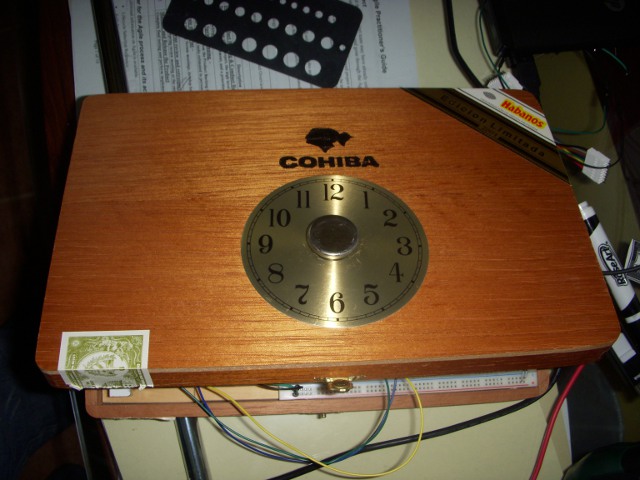
I found the best deal for individual breadboards at Electronic Express.  To host the boards, an empty box of Cohibas with a drawer handle did the job perfectly.  The drawer handle levels both side of the box when it is open. I put the faceplate of an old clock in the front for decoration.   See Figure 2 for an outside view of the box.

Cohiba Board

Figure 2 - Cohiba Board

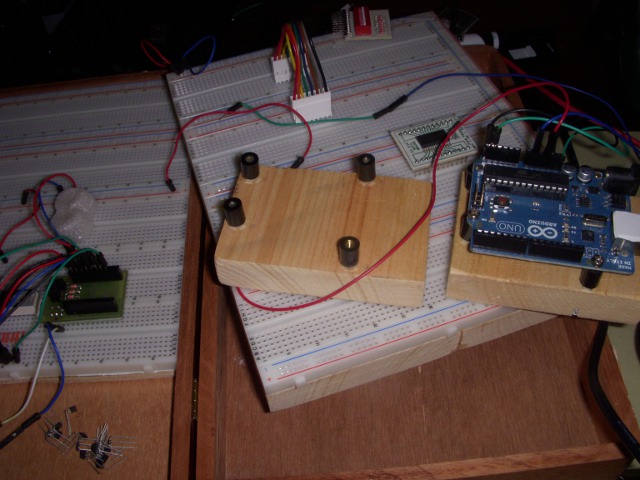
There is room for two Arduino boards and if the breadboards are empty, you can close the box with the Arduino boards inside.  See Figure 3, for an internal view of the right hand side of the board.

Cohiba Board 2

Figure 3 - Right Hand Side Of Board

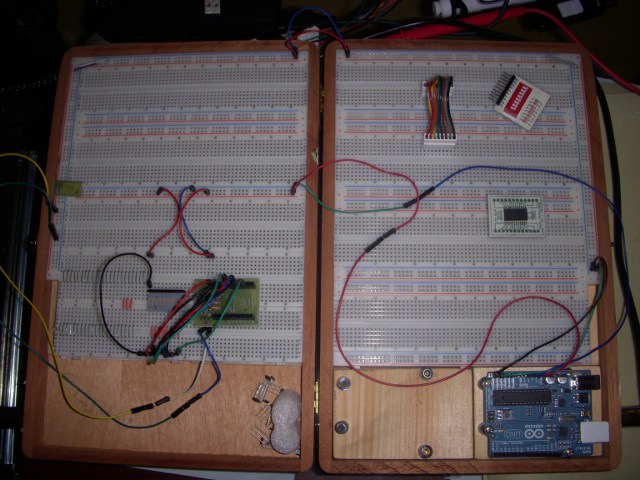
The breadboards are attached to a 1/2  inch, 7 x 9 board, that fits nicely in the box of Cohibas.  Attaching the breadboard to the wooden board allows them to be swapped in and out of the box as needed.  The left hand side of the board is fixed and it is screwed to the drawer handle with a flat nut.  The Arduinos are attached independently and can be swapped if necessary.  Figure 4, shows the Cohiba box open with all the breadboard real state.

Full Cohiba Board

Figure 4 - Full Cohiba Board

The outer bus is used as a data bus for I2C and SPI.  The bottom of the left hand side has two breadboards without buses.  This arrangement allows me to use larger than normal breakout boards.  Staples are used to connect the buses as needed.

Conclusion

Independently of the project or field, the ability to make the most of the resources you have is one of the best tools in your arsenal.  You can get empty cigar boxes from your local cigar store.  You may get them for free or for a couple of dollars.  Between cutting and sanding the boards, using a Dremel to trim the connection points of the outer data bus,  it took me a couple of hours to put this project together.  Now all I need is another box with fresh Cohibas to get started on the next project!